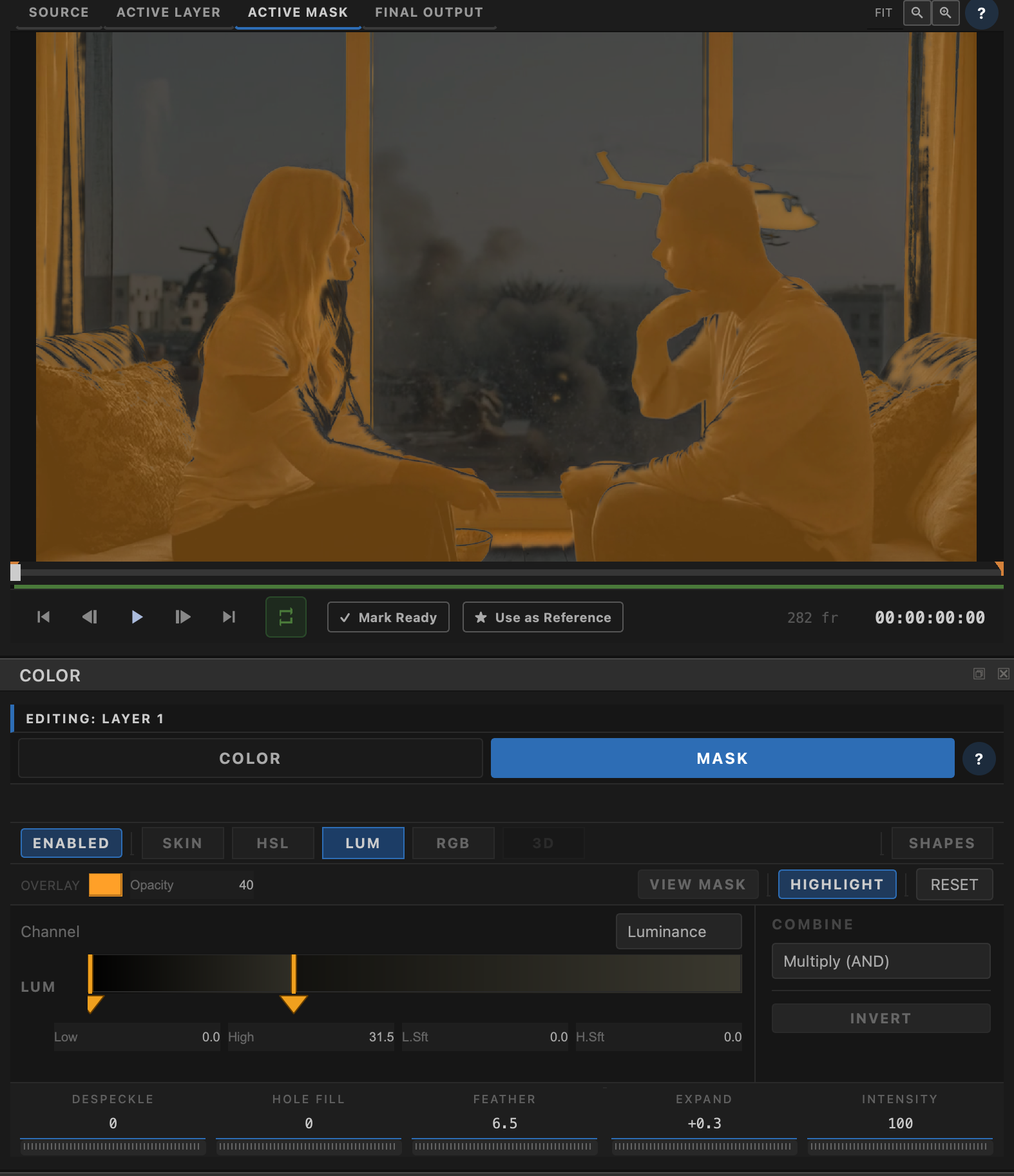
Analytical, non-AI masking that's perfectly stable frame to frame — click-to-pick sampling, four qualifier modes, edge-aware feathering, and a full refinement toolkit, with no flicker and no inference lag.
Transduce's qualifier engine is analytical, not AI-driven — per-pixel selection with no inference step, which means perfect temporal stability from frame to frame. That's the reason it exists as the primary masking path rather than relying solely on an AI segmentation model, where even small frame-to-frame confidence shifts can show up as visible flicker. For selections that are easier to describe as a subject than a color or shape — "the actor in the red jacket," "the dog" — Segment layers bring that AI-driven option into the same layer stack, tracked across the whole clip in one pass and refined afterward with this same matte toolkit.
Every mode shares the same sampling tool: click with the eyedropper to PICK a starting selection from a patch of real pixels, then ADD or SUBTRACT with more clicks to refine it — no manual slider-hunting required. From there, choose whichever of the four qualifier modes matches how you think about the selection: Skin ships with a ready-to-go average-skin-tone preset, while HSL, RGB, and Luminance start completely blank with a "start here" prompt pointing at the picker, so there's never a leftover default selection to fight before you begin.
Mask shaping runs despeckle and hole-fill first, then expand/contract and feathering, then intensity and invert — an order chosen deliberately so despeckle cleans up noise-driven micro-holes explicitly rather than relying on a blur step to do it as a side effect. Multiple qualifier channels combine with multiply, min, max, or subtract modes for arbitrarily complex selections.
Most masking tools soften a selection's edge with a blind Gaussian blur — the same falloff everywhere, whether or not there's any real detail underneath it. Transduce's feather is a guided filter instead, using the source image's own luminance as a guide so the edge bends around real detail — hair, foliage, motion blur — rather than spreading a fixed-radius blur across everything indiscriminately.
Feather deliberately runs after expand/contract, not before: expanding first closes small noise-driven holes while the mask is still hard-edged, so feather only has one real boundary left to soften instead of hundreds of tiny false ones.
PICK, ADD, and SUBTRACT from real pixels — build a selection by sampling, not by guessing at slider values.
Skin, HSL, RGB, and Luminance — four ways of describing which pixels. Skin ships with a tuned preset; the others start blank.
Despeckle, Hole-Fill, Expand/Contract, Feather, Intensity, and Invert — always visible, in every mode, in a deliberate order.
Multiply, Min, Max, or Subtract — how multiple active channels merge into one mask without muddy overlapping soft edges.
Edge-aware soft falloff driven by the frame’s luminance — softness that follows real detail, not a blind Gaussian haze.
Learn more →Rectangle, ellipse, bezier polygon, and line — draw windows, holdouts, and rings, then ADD / SUBTRACT onto the qualifier.
Learn more →Plain-language subject prompting — "the dog," "the actor in the red jacket" — tracked across the whole clip in one pass instead of picking pixels.
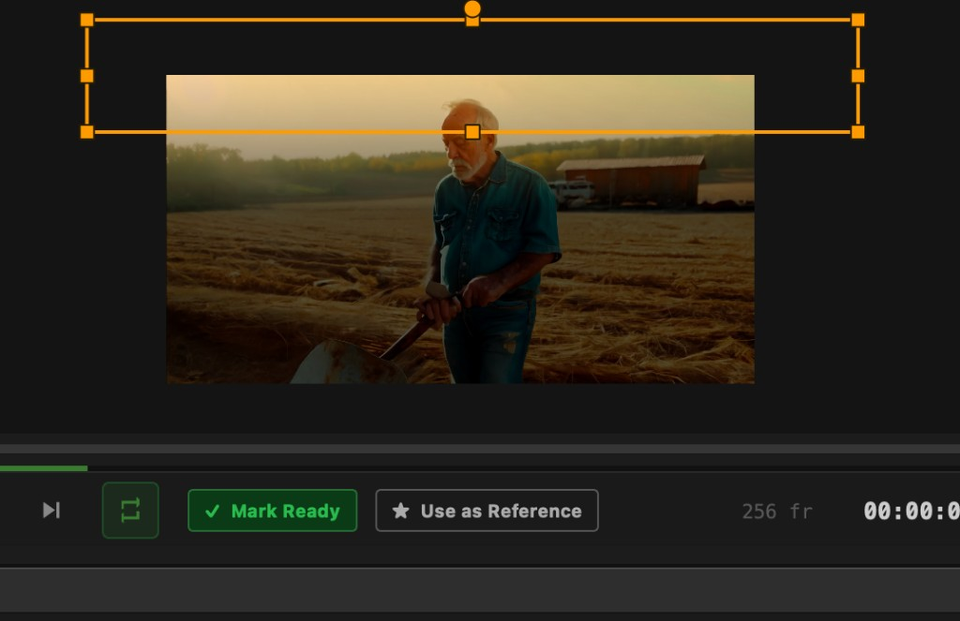
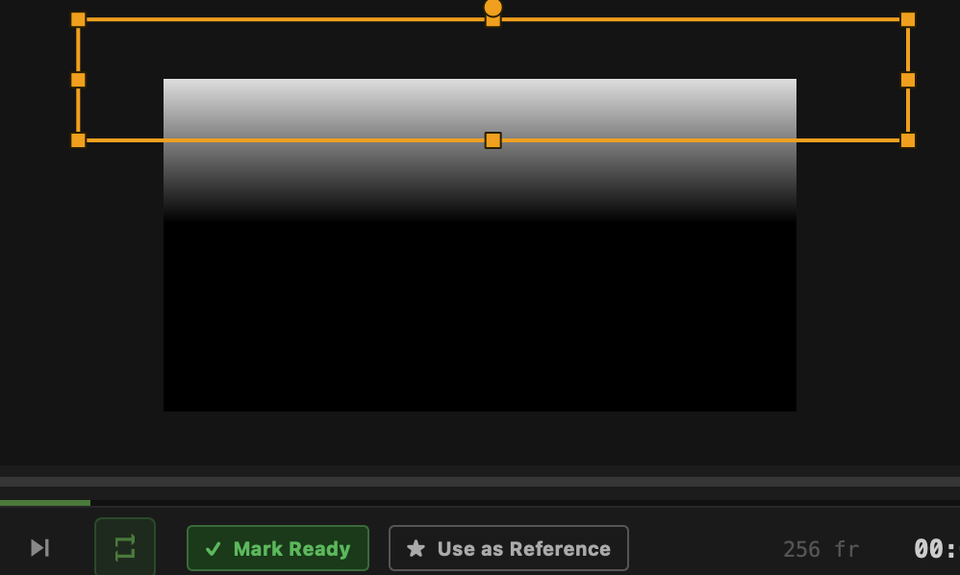
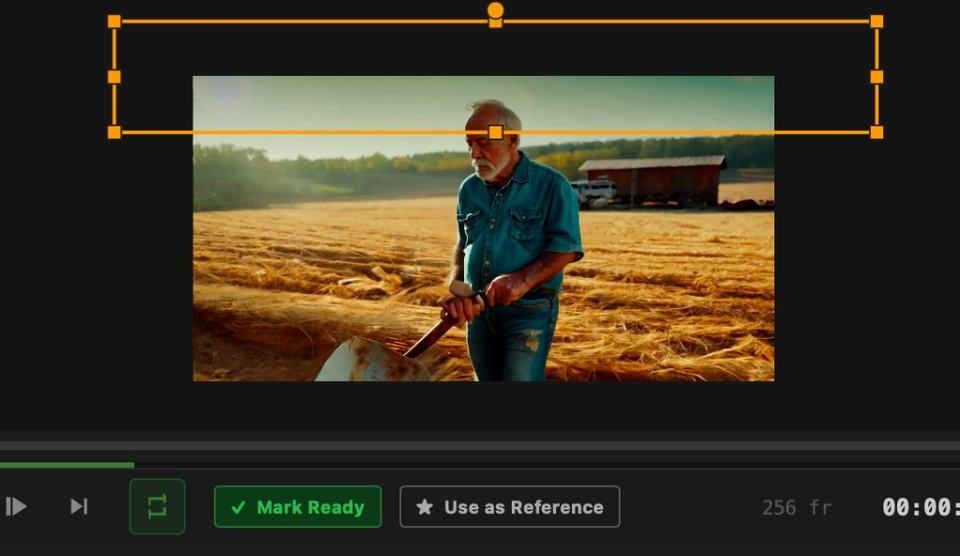
Learn more →Start from the graded frame, turn on a tinted highlight to see what the qualifier holds, then flip to a pure black-and-white matte for an exact read — same Layer 1 selection, three ways to judge it.
Active Mask viewer mode shows the mask on its own; Highlight keeps the picture under a controllable overlay tint and opacity.
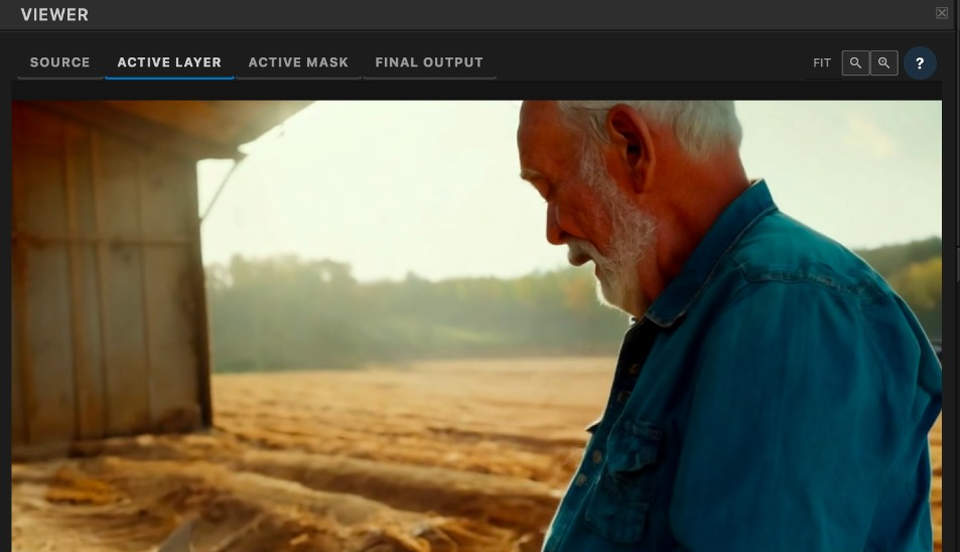
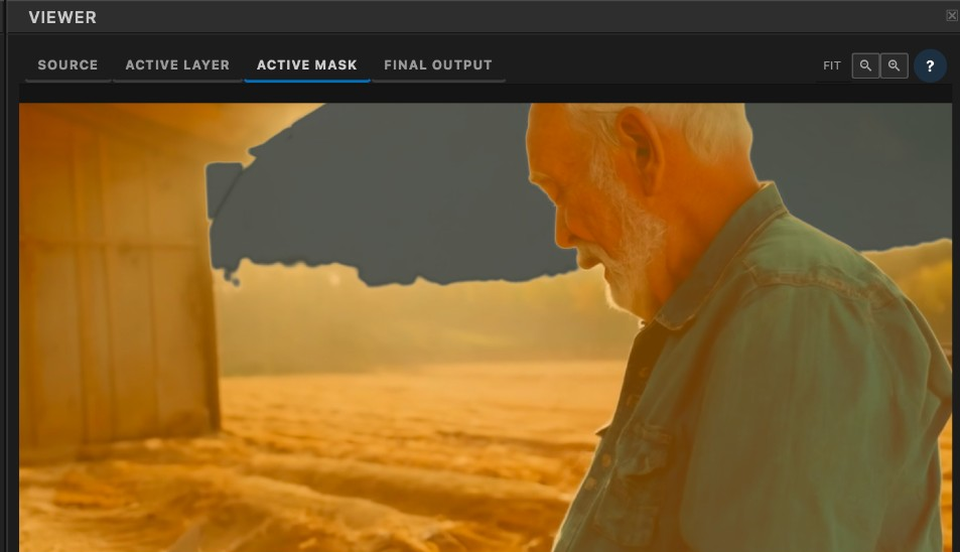
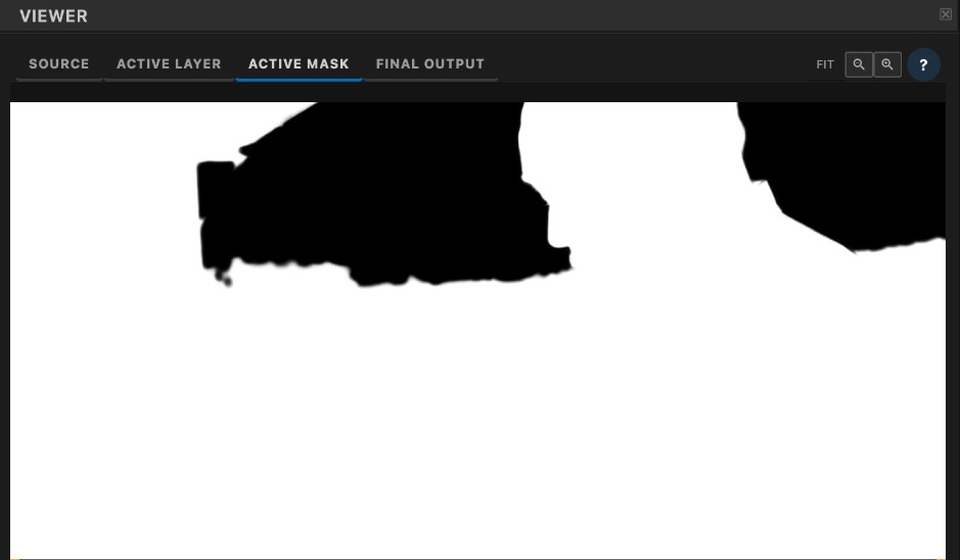
Draw a rectangle, ellipse, bezier polygon, or line on the canvas — then soft-edge, fill or ring, and ADD / SUBTRACT against any color qualifier. Primary windows, holdouts, rings — not garbage-matte-only.
Same View Mask tools apply: see the shape on the picture, read the matte, then check the graded result.
Transduce bridges the gap between AI and cinema. Your vision. Your pipeline. Perfectly matched.